Getting started in 10 minutes
This walkthrough takes you from an empty account to a first test mail. Have one list ready: a CSV or Excel file with company names and websites is enough. If you do not have one yet, the listings guide shows where to find one.
1. Set up your workspace
Log in and open Settings. Under General, give your workspace a name and fill in the sender name, reply-to address and mail footer. The footer appears under every campaign mail and on the unsubscribe page, so include your company name and address.
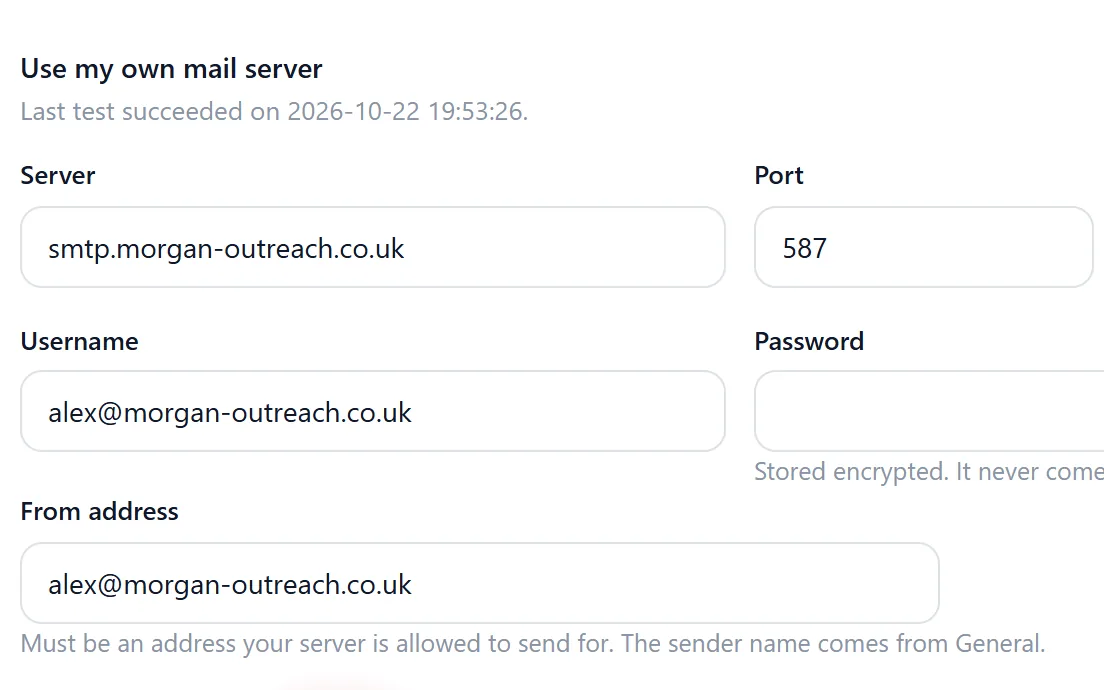
Then open Sending and switch on your own mail server. Fill in the server, port, username, password and from address, so campaigns go out from your own domain. Use Send test mail to check the connection.
While you are there, set your time zone and date format, and pick a light or dark theme.
2. Import your first list
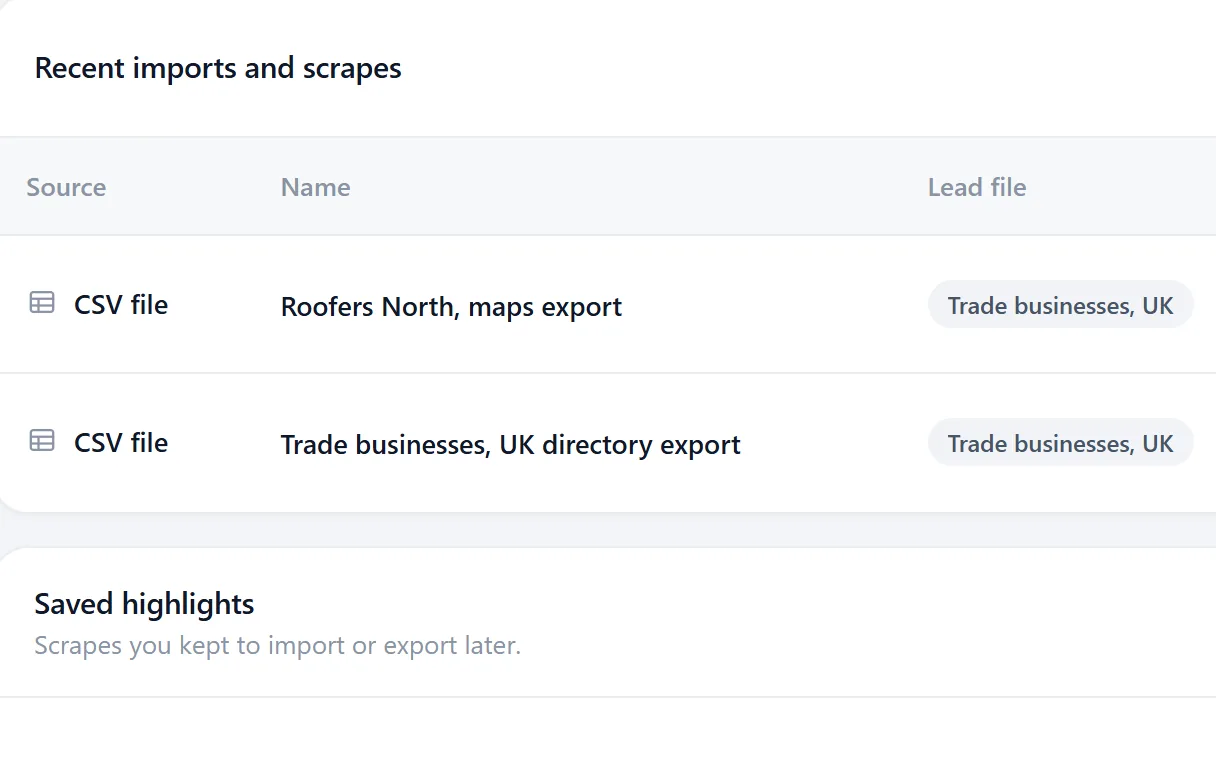
Open Import / Scrape and start a new import. Upload your file and choose to create a new lead file, with a name that describes the list, such as "Trade fair 2026".
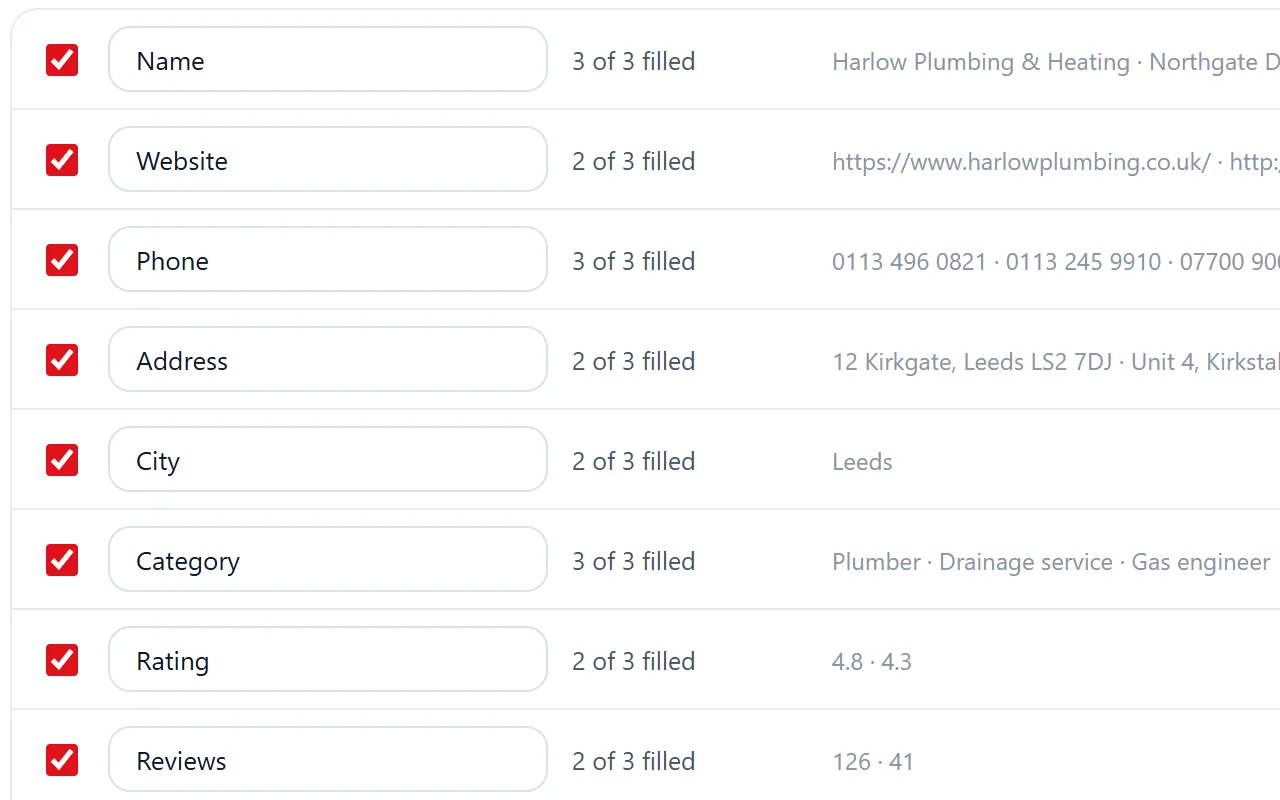
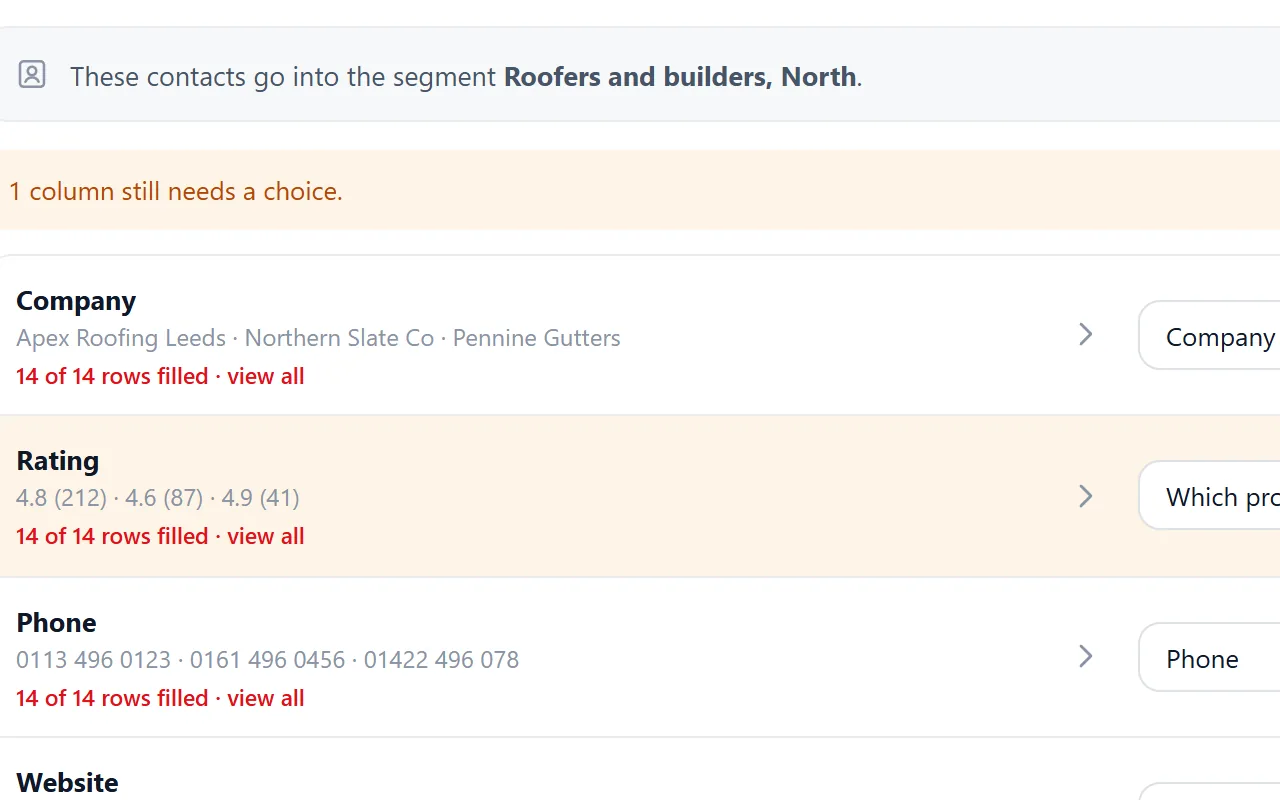
- Check the proposed column matches. Change what is wrong.
- Several URL columns? Pick the one that is the company website.
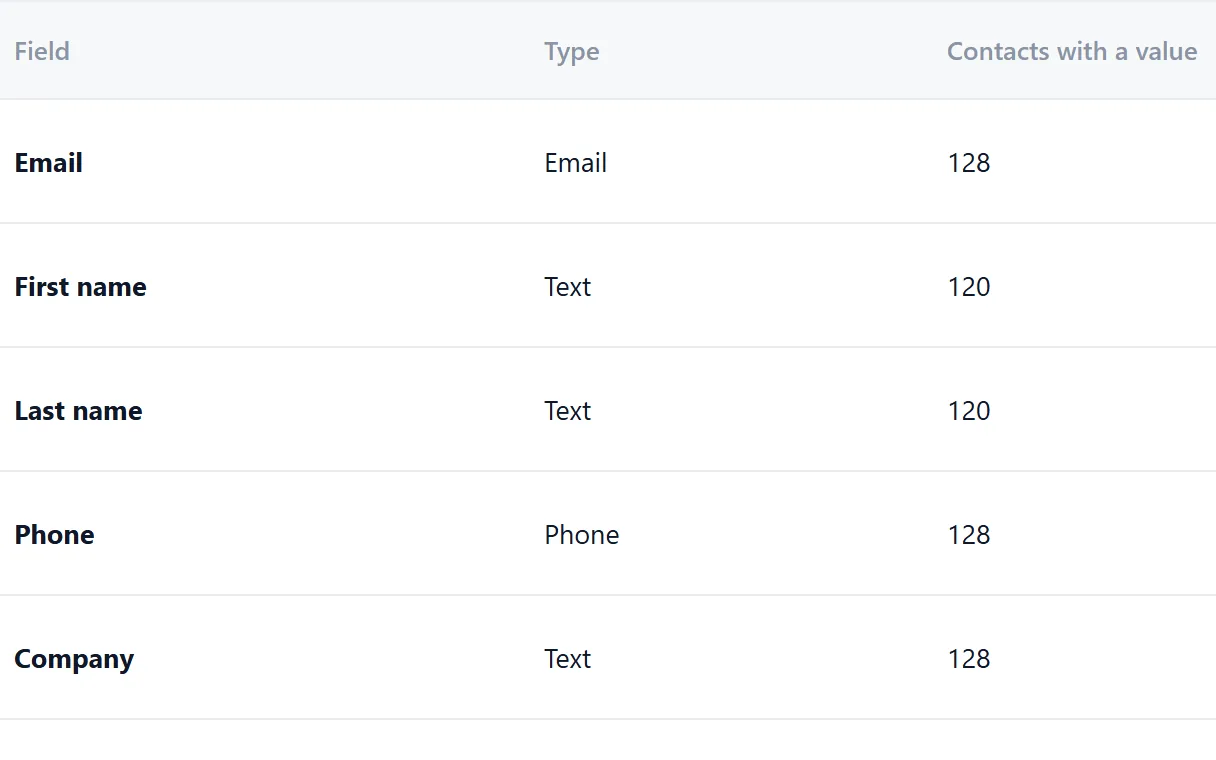
- Columns Riftjaw does not know become new fields, or you skip them.
- Choose the key field, usually the website, for duplicate checks.
- Choose the segment the contacts go into, or create one on the spot.
3. Fill in missing addresses
If rows have a website but no email, tick one or more prefixes like info@ or sales@, or add your own. Addresses are derived from the domain for rows without one. An existing email always wins. Derived addresses are guesses, so read what that means for bounces.
4. Review and publish
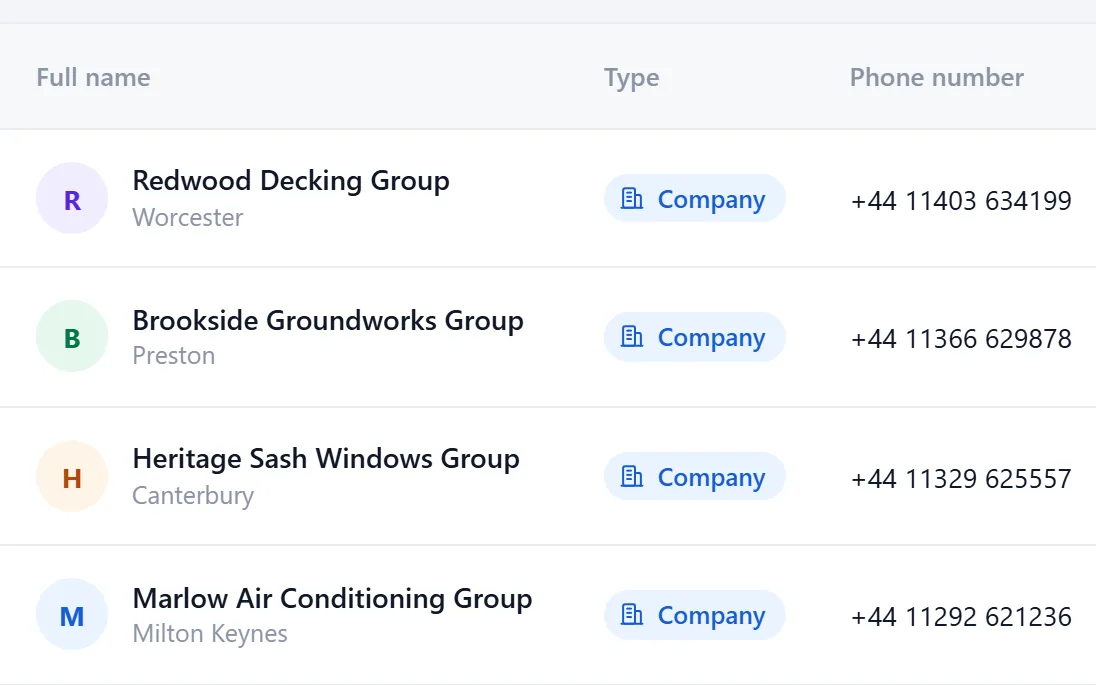
Duplicates inside the file and against your database are flagged before anything is saved. Push the import, then open Database. The new records are concepts. Check a few, then publish them one by one or in bulk. Made a mistake? Delete the whole import and start again.
5. Check your segment
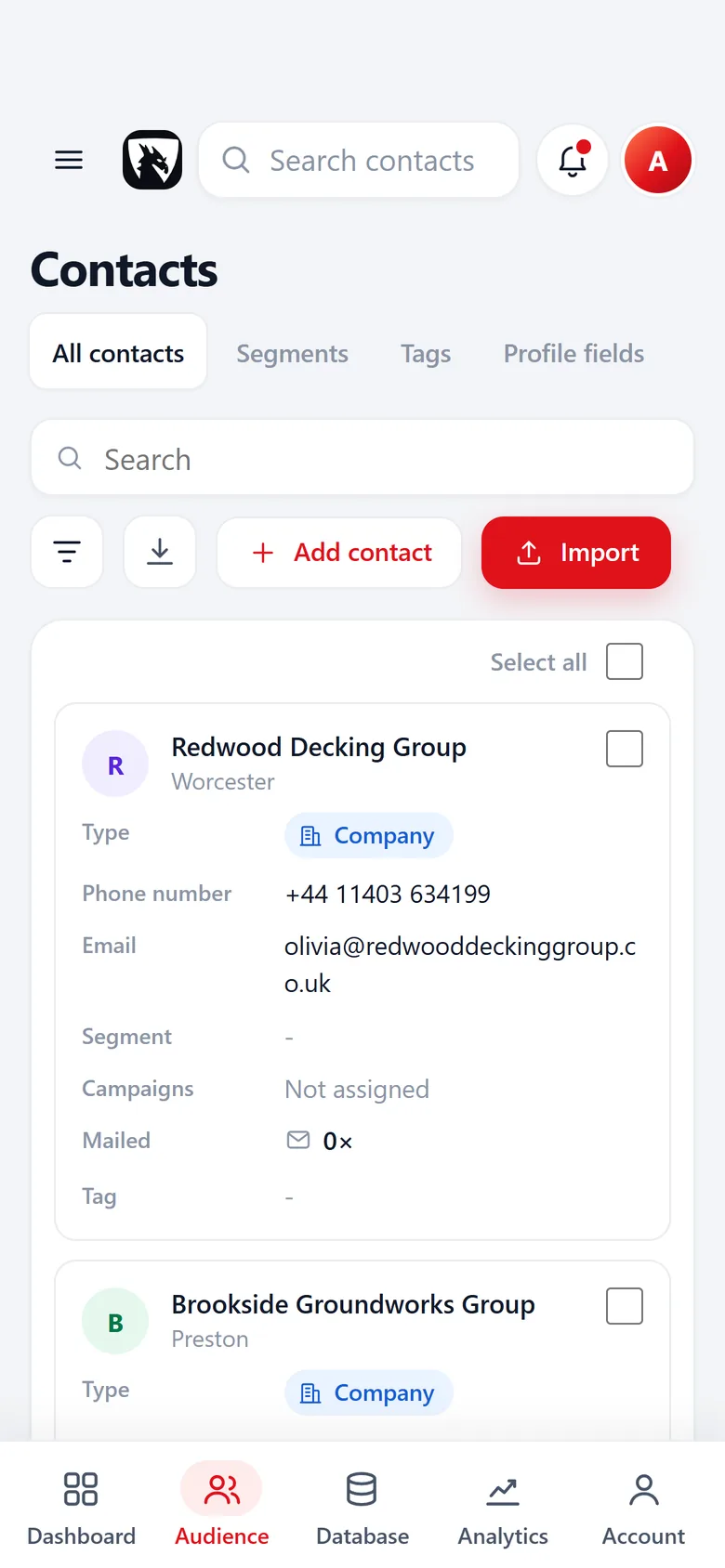
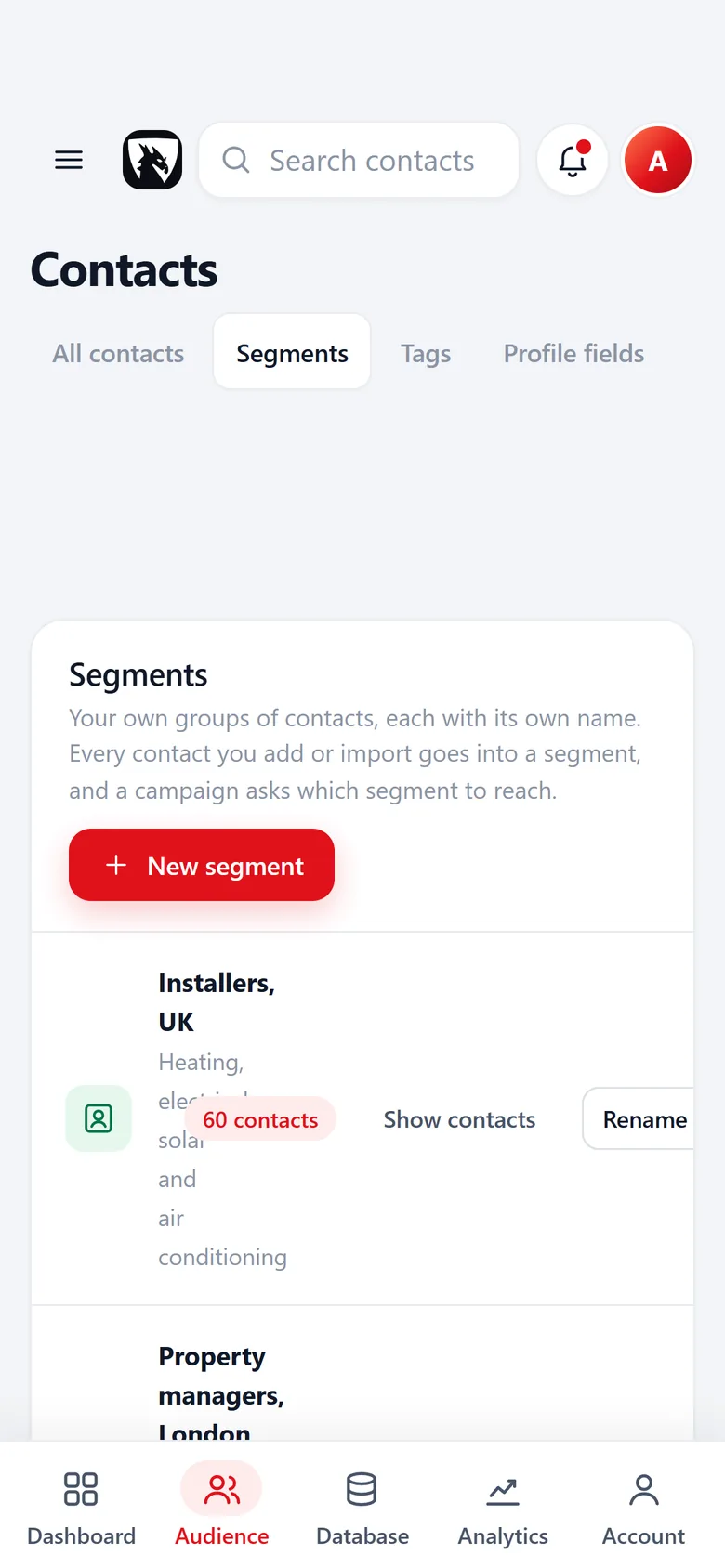
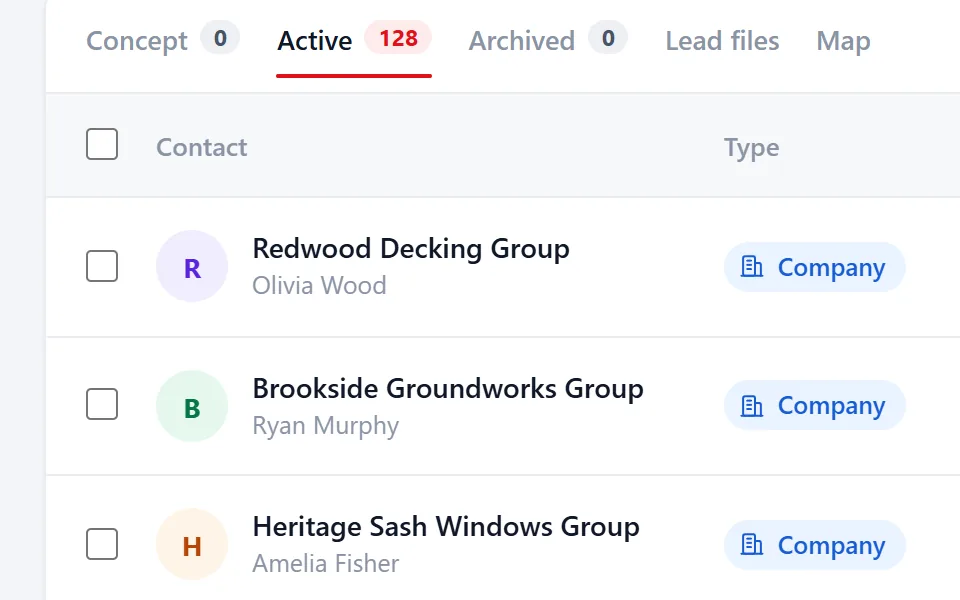
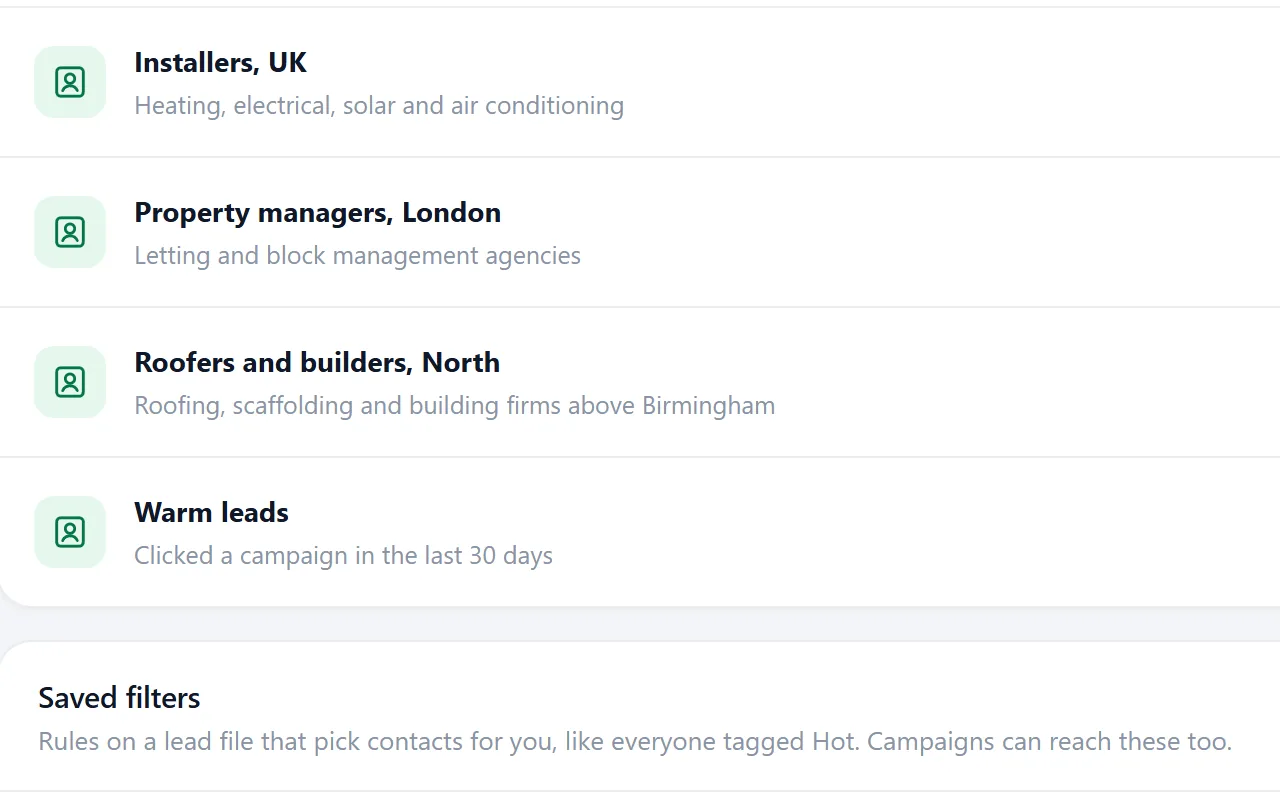
Open Contacts and then Segments. The segment of your import is listed there with its number of contacts. Select contacts in the list to add them to a segment or remove them in bulk. For a rule such as everyone tagged Hot, add a saved filter below the segments.
6. Write and test a campaign
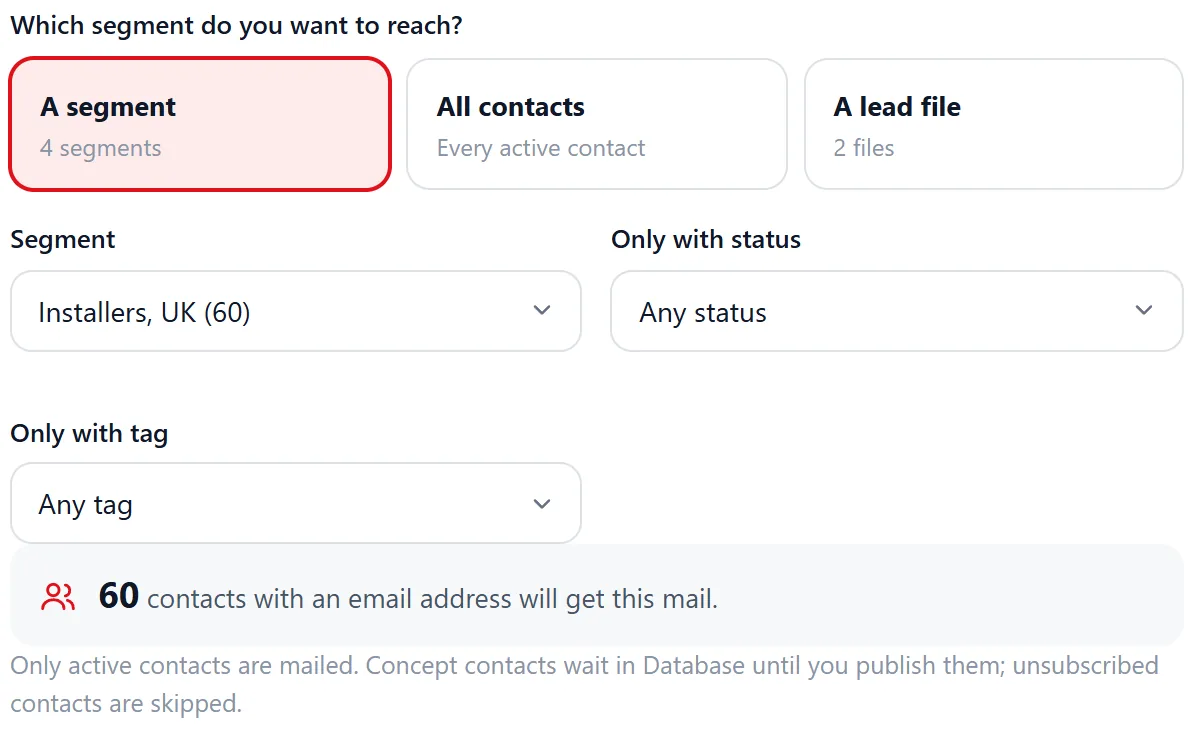
Open Campaigns and create a new campaign with your segment as the audience. Write the subject and text once, using placeholders like {company} and {first_name|there} with a fallback. The unsubscribe link and your footer are added automatically.
Use Send test to mail yourself a copy. Check the placeholders, the links and how it looks on your phone. When you are happy, start the campaign or schedule it. It goes out from the server in batches of ten, also when your browser is closed, and you can pause it at any moment.
Want follow-ups? Add up to 5 to the same campaign. Each one goes out the number of days after the first mail that you choose, to everyone who got the first mail, only to those who did not open it or only to those who did not click the button.
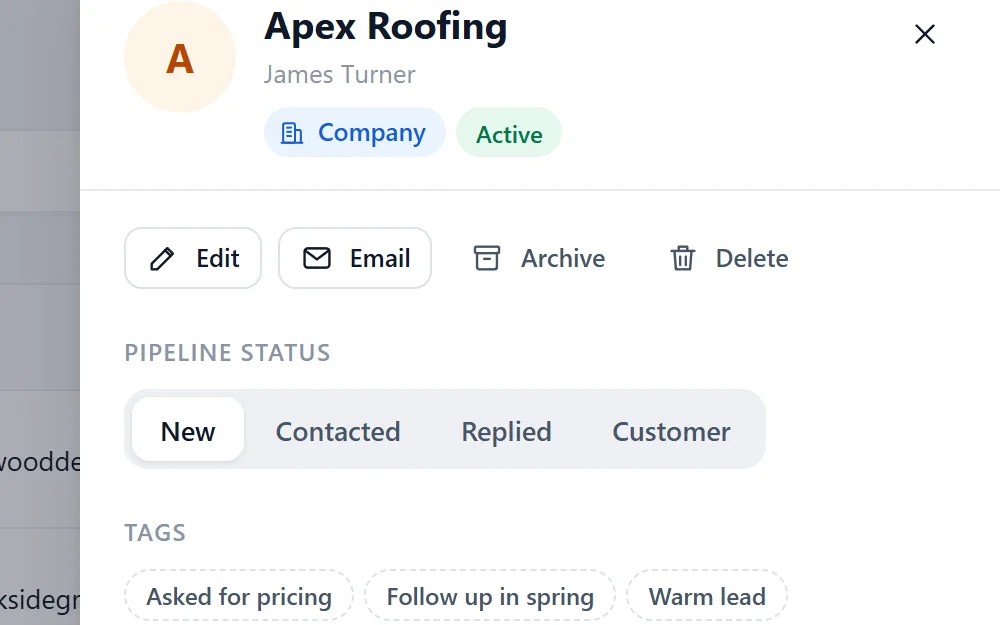
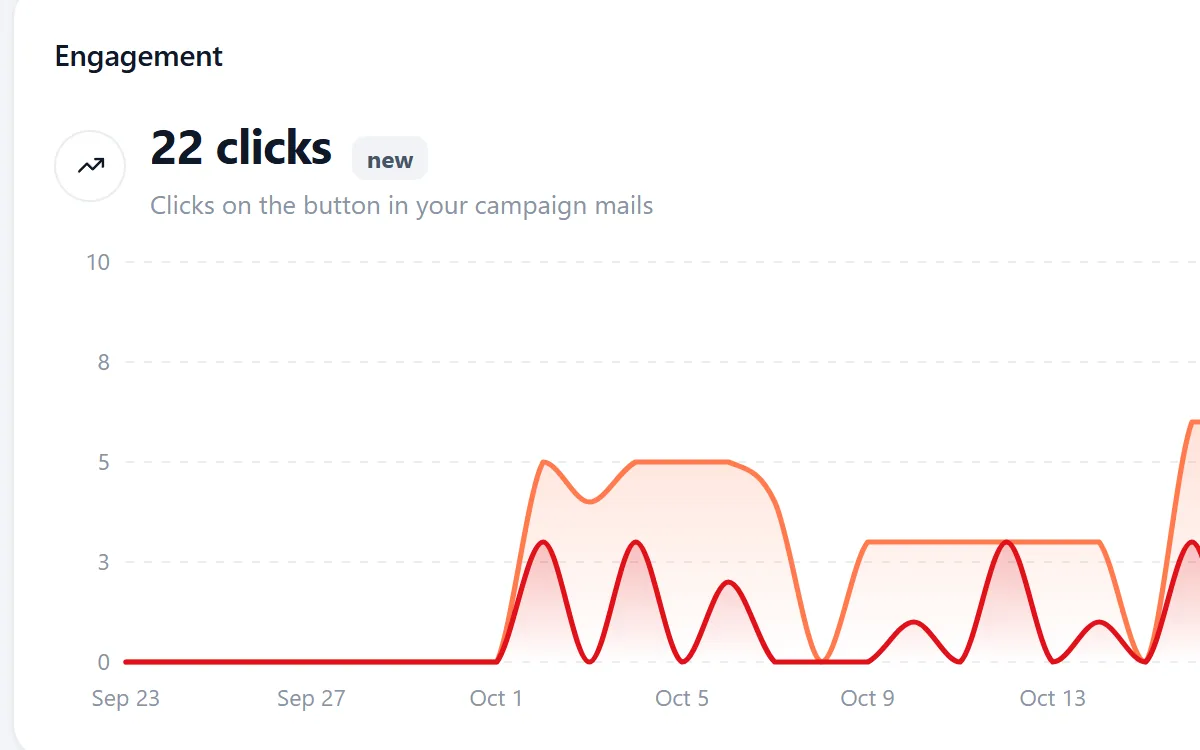
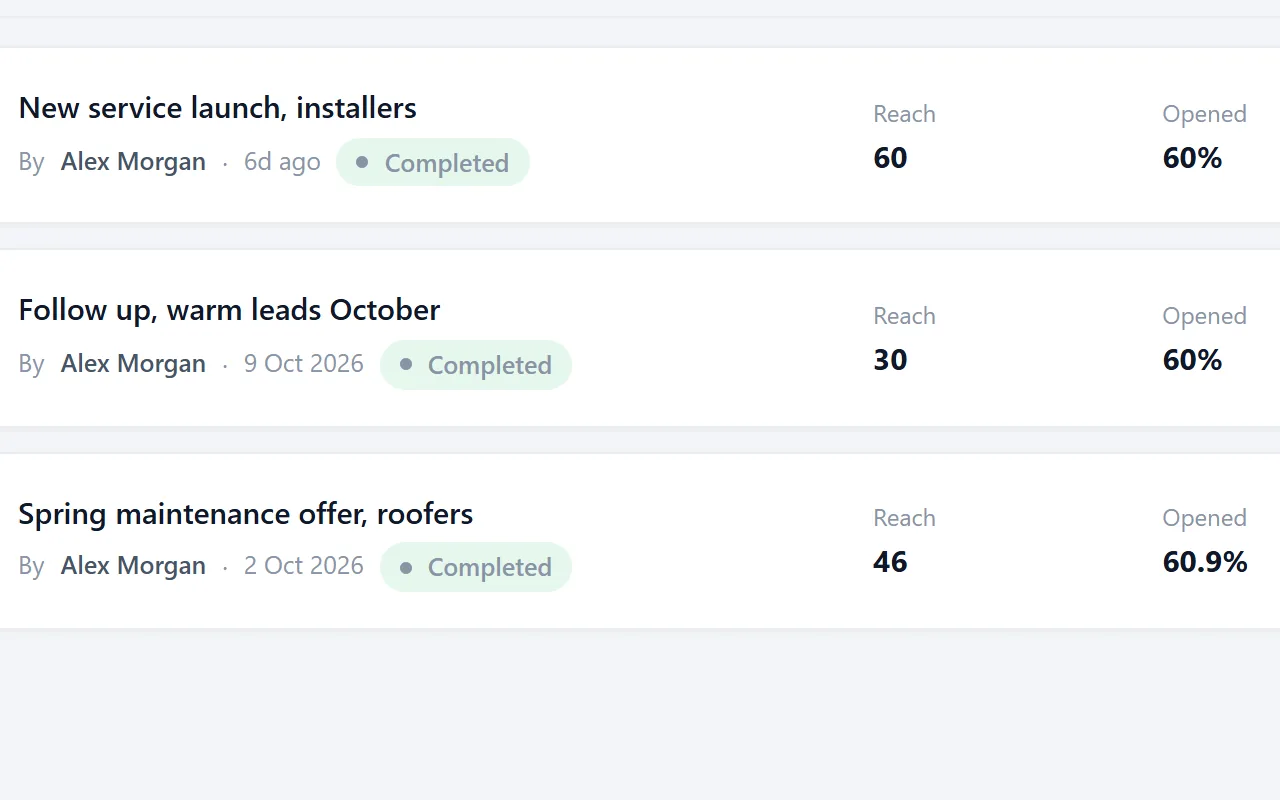
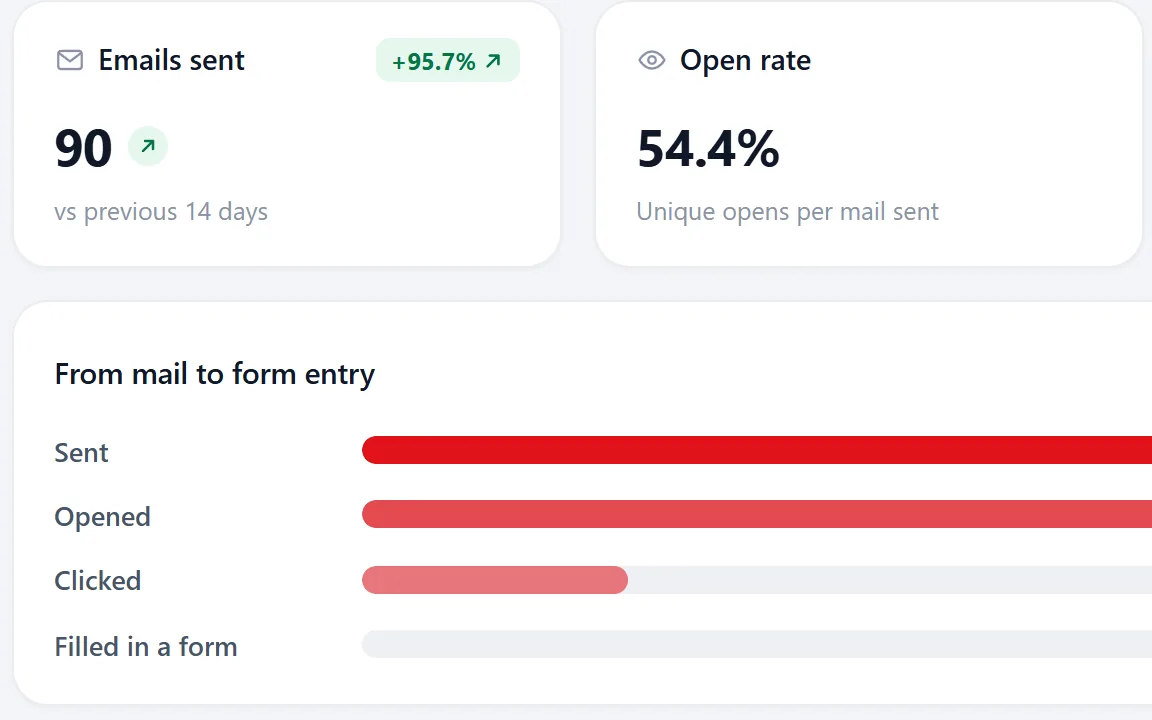
7. Follow up
Replies arrive in your own mailbox, because Riftjaw does not read your inbox. Open the contact in Riftjaw, set the status to Replied, add a note and a tag. Contacts with status Replied or Customer get no further follow-ups. Analytics shows sent, opened, clicked, form entries and unsubscribes per campaign, and Activities lists everything that happened. Before your next send, check the deliverability guide.